Posts Tagged Zbrush

The Lovecraftian Art of John Cherevka


Copyright © by John Chervka

Copyright © by John Cherevka

I’ve admired work of sculptor and painter John Cherevka (a.k.a. Skullbeast) for a while, and so I thought it’d be worth mentioning his work here.   His visualizations seem to jump right from the pages of HPL.   I particularly liked the way he captured Wilbur Whately in one of his paintings on Deviant Art.  His sculptures, often done in Zbrush are also a special delight, as they capture an alien otherworldliness that HPL hints at in his words.   It’s worth checking out his artwork gallery on DeviantArt.

Tags: , ,

Zbrush Mechanical Device Example

Here’s an example of using basic Zbrush building blocks.   I’ve not added much detail yet, but it gives you an idea of the power of ZB’s Primitives.   100% modeled and rendered in ZB 3.12 Mac.kfootsamp

Tags:

Zbrush Mechanical Part 4, Rounded Holes

I needed a hexagonal part with a round hole in the middle.   This would seem to be a challenge for ZBrush requiring an outside modeler.   However, it is actually pretty easy in ZB if you know primitives and deformers.

First, we can start with our old friend the cylinder primitive:cyl1   

Not very hexagonal yet, and too long, but we can fix that.  We tweak the number of sides to 6 and shorten the z-length in the “initialize” menu:hex2

Better, but no hole . . . We can solve that by setting the “inner radius”:hexhole3

Nuts, close, but the inside whole isn’t round.   I’ll need to fix that up before the boss sees it.   I go ahead and make this a poly mesh and then group the inside polygons.  I also divide the polymesh a few times (well, 3 actually) with the “SMT” option off (so that it doesn’t round off my hexagonal prism).  Showing just the inside polygons (with display-double on for ease of viewing, I have:

holegroup4

Now if there was a easy way to round those off, I’d be home free.   Hey, what about that “deformations” subpallet?defmenu

Ooo . . . I like that “RFlatten” thing . . . (It’s short for Radial Flatten).   A little RFlatten and slight tweak of the size (with just X & Y turned on) and I have a nice round hole.  roundedhole5

Unhiding my geometry, I’m good to go:finishedhex

Total time to  model: less than two minutes.

Tags: ,

Zbrush Mechanical Part 3, Springing Into Action

Springs are fun and a handy way to add a common mechanical detail.   Zbrush has a built-in spring generator, called the helix primitive.   A little setting of the initialize parameters and we get something like this:

Basic Spring

Basic Spring

(You did know about the initialize subpallet didn’t you?   If not, load up a few 3D primitives in Zbrush and look down the tools menu for the subpallet with “Initialize”.   Here you can set all sorts of neat starting shapes for your primitives before making them into a polymesh.)

I didn’t make this a polymesh right away, keeping it as a helix primitive.   I’m going to use a little know feature of primitives–col masking.   Also, to give me some more resolution, I divided my spring a couple times by going to the geometry subpallet.   (Yes, you can divide primitives the same as polymeshes!)   

Inside the masking subpallet are some handy features that only work with primitives marked “col”, “row”, and “grid” with a couple mysterious slides marked “sel” and “skip”.   You push any of these buttons on an unmasked primitive, nothing seems to happen and thus many a tyro is frustrated by them.   This is because these buttons selective remove masks, not add them.   (It feels counterintuitive to me too, but this is ZB, after all–which often feels like it was built on “opposite day” at first.)

The sel slider will choose how many adjacent rows or columns of the primitives polygon grid will be selected.   The skip slider will  then decide how many to skip before selecting.   To get a nice box cutout, I’m going to select 3 and skip 4 which will give me a nice alternation.   Now, before I go rushing to pushing the “col” button, I do the all important first step–I hit the “mask all” button on the masking subpallet.  A press of the magic col button and I have a nice ring mask on my spring:

Masked Spring

Masked Spring

With my plain-jane spring now nicely masked, I can use “inflate” under the deformations subpallet to pull in the unmasked parts to give some additional texture.   A little fiddling, and I have something like this:

picture-6

Textured Spring

Add a couple of creative cylinders, and I have this:


Completed Spring

Completed Spring

Tags: ,

Zbrush Mechanical Part 2, Spinning in Circles

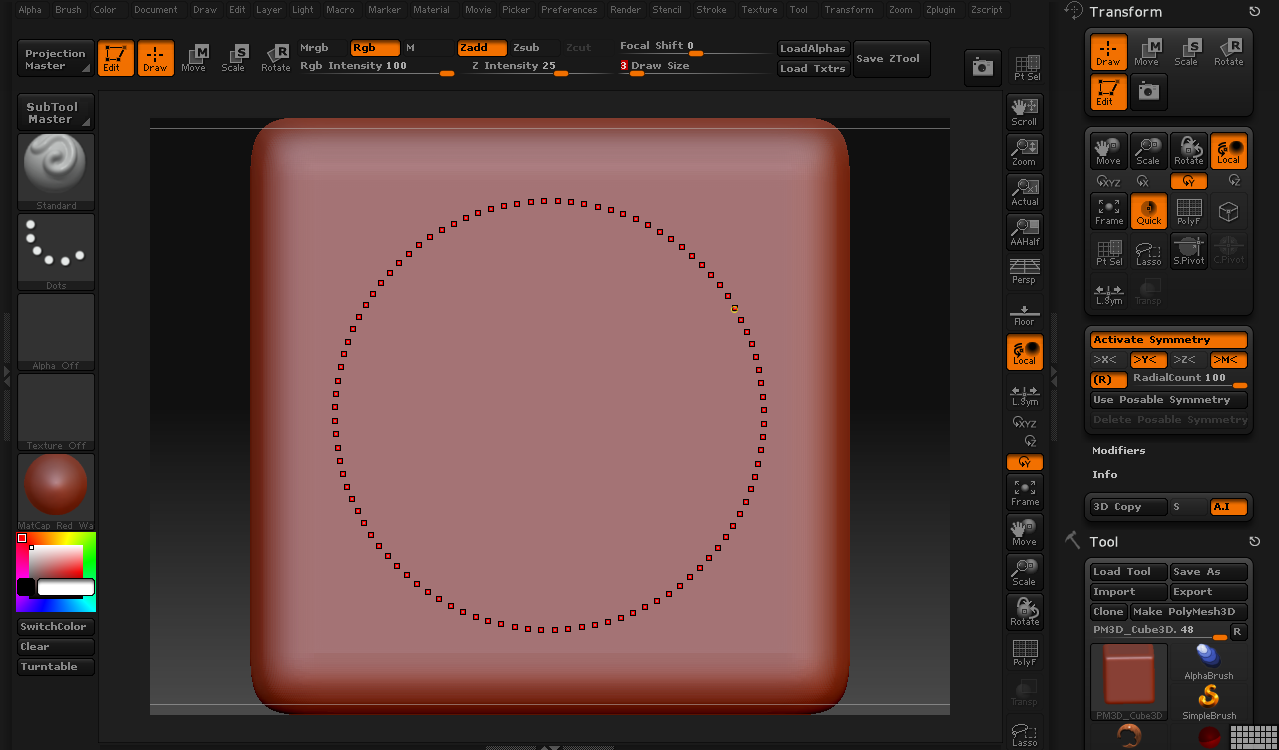
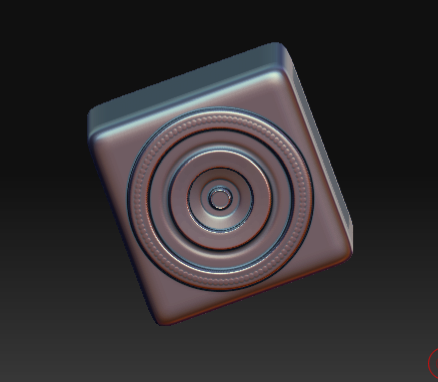
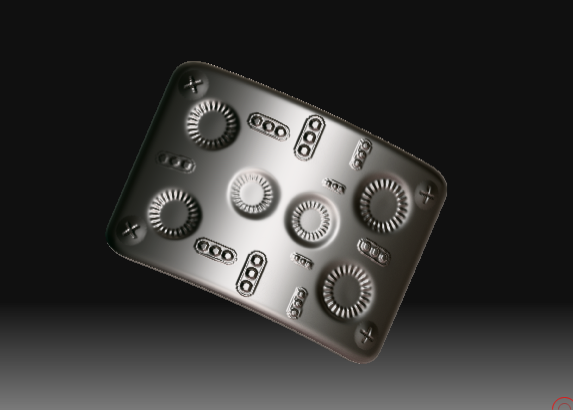
Making perfect circles is pretty important to creating the illusion of mechanical things.  Fortunately there are lots of ways to do this, such as as using round alphas, but did you know you could quickly paint circular displacements right on to any hires geometry?  It’s called radial symmetry and it’s really quite simple to use.   Just click on the “(R)” button on the transform pallet and set the number of copies of your brush you need.   Set it really high (up to 100) and then you can quickly spin-up perfectly circular ridges.  The clay brush will keep these ridges perfectly level.   It’s a pretty easy 1-2-3.


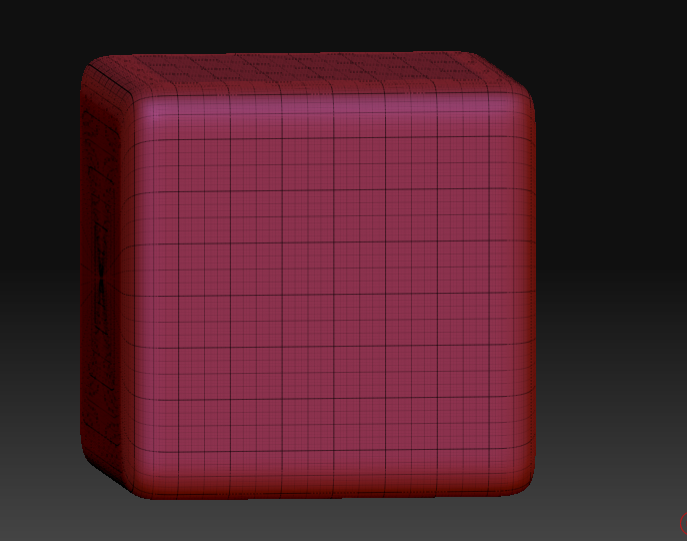
Plain Cube Subdivided

Plain Cube Subdivided

A Radial Symmetry Brush
A Radial Symmetry Brush

A detailed cube
A detailed cube

Tags: ,